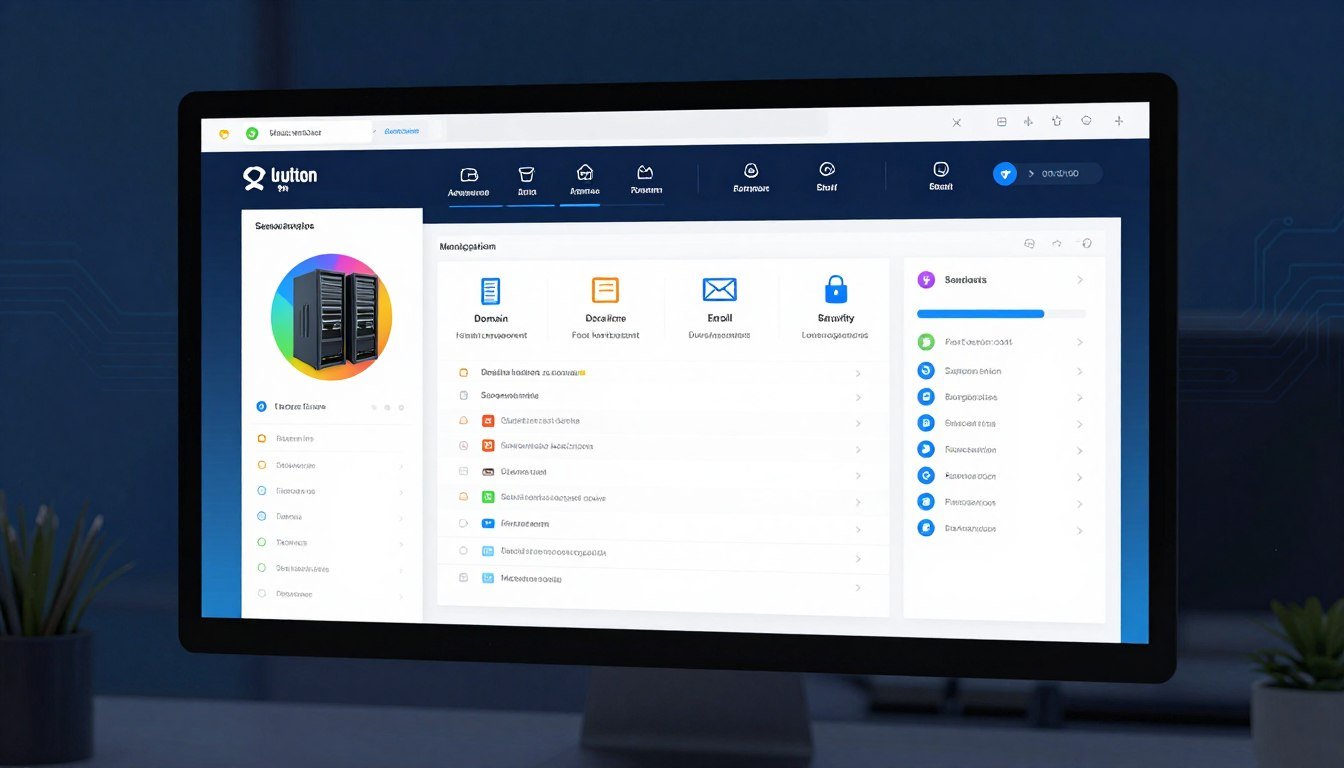
Is managing your web server feeling like a full-time job? You’re not alone. Many website owners struggle with complex technical tasks that eat up valuable time.
A powerful control panel can change everything. It transforms confusing server commands into simple clicks. Plesk gives you complete control without needing deep technical expertise.
The right platform offers a clean user interface that anyone can navigate. It works on both Windows and Linux operating systems. Leading providers like Hostinger include it with their VPS hosting plans.
Plesk is perfect for businesses, developers, and individuals. It helps you manage multiple websites from one dashboard. Automation tools handle routine tasks so you can focus on growth.
This guide will show you how to master server management. You’ll learn to install, configure, and optimize your setup. Get ready to turn complexity into simplicity.
Key Takeaways
- A control panel simplifies complex server management through a visual interface.
- This tool works across different operating systems for maximum flexibility.
- Automation features save significant time on routine hosting tasks.
- The platform serves both technical professionals and beginners effectively.
- Major hosting providers often include this solution with their service plans.
- Centralized management allows handling multiple websites from one location.
- Proper setup transforms technical challenges into streamlined processes.
What is Plesk and Why It Simplifies Hosting
What if you could manage every aspect of your hosting environment through a single visual dashboard? This is the core promise of a modern hosting control panel. It acts as a crucial intermediary between you and your server’s complex systems.
Plesk translates your intentions into actions the machine understands. You get visual buttons and menus instead of command lines. This approach makes server management accessible to more people.
The All-in-One Web Hosting Control Panel
A comprehensive control panel consolidates all essential tools into one interface. You can handle domains, databases, and email accounts from the same place. This eliminates the need to jump between different management systems.
The scope of services is impressive. Users can configure DNS settings and security protocols effortlessly. Setting up professional email services or deploying a website becomes a guided process.
Cross-platform compatibility is a key feature. The software works on both Windows and Linux operating systems. Popular distributions like Debian and CentOS are fully supported.
This flexibility is vital for businesses using different server environments. It ensures consistent management experience across various setups. The user interface remains intuitive regardless of the underlying system.
Key Advantages Over Manual Server Management
Manual server administration requires technical expertise and time. The control panel automates repetitive tasks like backups and script updates. This automation significantly reduces the chance of human error.
Time savings are substantial with this approach. What takes hours through command lines can be done in minutes. This efficiency allows you to focus on growing your business instead of maintenance.
Centralized control provides a clear overview of all your resources. You can monitor multiple websites and services from one dashboard. This holistic view simplifies troubleshooting and optimization.
The platform’s widespread adoption speaks to its effectiveness. It currently operates on over 384,000 servers globally. These servers power more than 11 million websites and 15 million email boxes.
Since its introduction in 2001, the tool has evolved with hosting needs. It was designed to automate the growing complexity of applications and online business. Today, it represents a mature solution for modern web hosting challenges.
Practical benefits impact daily operations directly. Website deployment times drop from days to hours. Security configurations that were complex become straightforward tasks.
Accessibility remains one of the strongest advantages. Users with varying technical skills can accomplish advanced management tasks. The learning curve is much gentler than with traditional methods.
Core Benefits of Using Plesk for Your Server
The right server management platform transforms technical burdens into strategic advantages. A comprehensive control panel delivers tangible improvements across your entire hosting operation. These benefits directly impact your bottom line through saved time and reduced risk.
Users gain powerful tools for everyday tasks without complex training. The interface simplifies what was once reserved for experts. This accessibility empowers businesses to focus on growth rather than maintenance.
Streamlined Website and Domain Management
Managing multiple websites becomes intuitive with a unified dashboard. You can oversee all your domains from a single screen view. This consolidation is perfect for agencies or resellers with numerous client sites.
The built-in file manager eliminates the need for separate FTP software. Modify website files directly through your control panel interface. This streamlined approach saves steps and reduces potential errors.
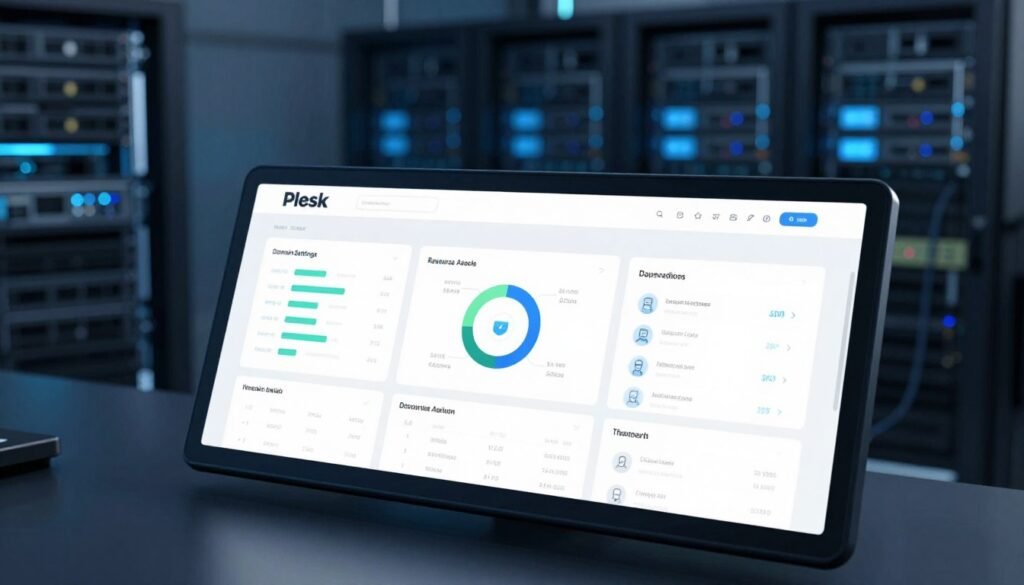
Handling domains, databases, and email accounts happens in one place. You avoid jumping between different management systems. This centralization provides a clear overview of all your resources.
Virtual hosts for various projects are easy to configure. The system guides you through each setup process. You maintain complete control without remembering complex commands.
Enhanced Efficiency Through Automation
Automation features handle repetitive tasks that consume valuable time. Schedule commands, PHP script execution, or URL fetching to run automatically. This frees you for more important strategic work.
Nightly backups can occur without manual intervention. Script updates and maintenance checks happen on your predetermined schedule. These automated processes ensure consistency and reliability.
Extensions like the built-in HTML code editor simplify development tasks. Make quick changes to your content website without specialized software. The platform integrates tools that would normally require separate installations.
Significant time savings accumulate from these streamlined workflows. What took hours through manual methods now completes in minutes. This efficiency directly reduces operational costs for your business.
Built-in Security and Scalability
Robust security features protect your server from vulnerabilities and cyber attacks. The system includes measures to prevent unauthorized access. Regular updates address emerging threats automatically.
SSH access provides advanced customization options for technical users. Control server permissions precisely to enhance your security posture. This flexibility meets the needs of both beginners and experts.
Scalability features ensure your hosting grows with your business. Manage computing resources effectively during traffic spikes. The built-in NGINX caching improves website performance under heavy loads.
You can scale your infrastructure without switching control panels. The platform supports expansion through integrated tools and features. This future-proof design protects your investment as needs evolve.
These benefits combine to deliver measurable business outcomes. Improved website uptime and enhanced security become standard. The right tools transform server management from a chore into an advantage.
How to Install and Access Your Plesk Control Panel
Before you can streamline your hosting tasks, you need to install and access your server management interface. This process sets up the foundation for all your future operations. Getting it right ensures smooth management from day one.
The installation follows a logical sequence with clear prerequisites. You’ll work through license acquisition, server preparation, and final configuration. Each step brings you closer to a powerful hosting control panel experience.
Prerequisites: License and Hosting Plan
You need two essential components before installation begins. First, obtain a valid license for the control panel software. Second, ensure you have compatible server hosting.
Plesk operates on a license-based model. You typically purchase access through your hosting provider. Many providers include license options during server setup.
Compatible hosting usually means a VPS hosting plan or dedicated server. Shared hosting environments generally don’t support this level of control. Check your hosting plan specifications before proceeding.
Always create a complete backup of your existing server data. The installation process will wipe all current information. This precaution protects your files, databases, and configurations.
Step-by-Step Installation via Your Host (e.g., Hostinger)
Many hosting providers offer streamlined installation directly through their management panels. The process varies slightly between companies but follows similar principles.
For Hostinger users, start by logging into your hPanel account. Click VPS on the left side menu. Select the specific virtual server you want to configure.
Click the Manage button for your chosen server. Navigate to OS & Panel → Operating System from the sidebar. You’ll see available operating system options.
Either search for the control panel by name or select it under the OS with Panel tab. Click on your preferred version. Then execute the installation by clicking Change OS at the bottom.
The system will wipe your server and install the new environment. This process typically takes 15-30 minutes to complete. You’ll receive notification when installation finishes.
Other hosting environments may require different installation methods. Some use one-click installers while others need manual script execution. Always verify you have a valid license before beginning.
Logging In and Navigating the Dashboard Views
Once installation completes, access your new control panel. Enter https://[your-server-IP-or-domain]:8443 in your browser’s address bar. Replace the bracketed portion with your actual server details.
Use your VPS username and password to log in. The system redirects you to the main dashboard after authentication. This is your central command center for all server operations.
The interface offers two primary viewing modes tailored to different user roles. The Service Provider view suits hosting companies managing multiple clients. The Power User view works best for individual server administrators.
Dashboard layout includes several key areas. The sidebar organizes management categories like domains and websites. The main menu provides access to settings and tools.
The top bar contains search functionality, notifications, and help resources. This organized structure helps you find needed features quickly. Everything remains accessible within a few clicks.
First-time users should explore interface settings immediately. Customize the dashboard to match your workflow and preferences. Adjust the view mode based on whether you manage clients or personal projects.
Take time to familiarize yourself with the main navigation paths. Locate essential functions like domain management and security settings. This initial exploration pays off through faster daily operations.
Remember that the control panel is designed for intuitive use. Most tasks follow logical sequences with clear guidance. Don’t hesitate to use built-in help when needed.
Managing Essential Hosting Tasks in Plesk
The real power of a hosting control panel emerges when you tackle everyday website management. Three core activities define most daily operations for website owners and administrators. These tasks transform from technical challenges into simple procedures with the right interface.
You handle domains, professional email, and content management systems regularly. Each function connects to your overall online presence. The control panel consolidates these essential tools in one accessible location.
Adding and Configuring Domains & DNS Settings
Start by navigating to the Websites & Domains section in your sidebar. Click Add Domain and select Blank Website from the options. Enter your domain name and configure the webspace settings as needed.
Click Add Domain to confirm your new website setup. The system displays a configuration menu for your domain immediately. This provides quick access to all related management options.
Access the Hosting & DNS menu and select DNS settings. Point your domain to the correct VPS hosting using information in the Records tab. You’ll find necessary A records, MX records, and other DNS entries here.
DNS propagation typically completes within 24 hours globally. This process makes your domain accessible worldwide. Set realistic expectations for clients during this brief waiting period.
Setting Up Professional Email Accounts
Navigate to the Mail tab in your control panel dashboard. Select Mail Accounts and click Create Email Address to begin. Enter your desired username for the local part of the address.
Set a strong, secure password following best practices. Click OK to finish the account creation process. Your new professional email becomes active almost immediately.
The platform offers advanced configuration options for business needs. Enable SSL/TLS encryption for secure email connections. Set up autoresponders for times when you’re unavailable.
Configure mail forwarding rules and spam filters easily. These tools help maintain professional communication standards. They protect your business from unwanted messages and security threats.
Deploying Websites: WordPress and Other CMSs
This control panel supports various content management systems directly. Popular options include WordPress, Joomla, and Drupal. Each system has optimized installation processes available.
For WordPress deployment, first select your target domain. Click PHP settings to ensure proper support is active. Then navigate to Install Application and choose WordPress.
Enter your administrative credentials and site information. Click Install to begin the automated setup process. After completion, click Log In to access your website’s admin area directly.
The WordPress Toolkit provides unique management features. Use one-click staging environments for safe testing. Run security scans and automated updates for core software.
Manage themes and plugins through the same integrated interface. This consolidation saves time and reduces security risks. You maintain complete control without switching between different tools.
Use the built-in file manager to upload and modify website content. This eliminates the need for separate FTP software installations. Handle databases, FTP accounts, and scheduled scripts from one location.
Configure cron jobs for automated task execution easily. These scheduled scripts handle routine maintenance without manual intervention. The system streamlines what were once complex technical procedures.
Each hosting task becomes straightforward through the visual interface. You accomplish more in less time with fewer errors. This efficiency translates directly to better website performance and reliability.
Advanced Server Management and Security Features
Taking control of server security begins with understanding the built-in tools for backup and monitoring. These advanced features transform routine maintenance into proactive protection for your online assets. You gain enterprise-grade capabilities without needing specialized technical expertise.
The right platform provides comprehensive solutions for data safety and system integrity. These tools work together to create a resilient hosting environment. Your websites remain secure and performant with minimal daily effort.
Configuring Backups and Restoring Data
The Backup Manager creates space-efficient copies of your entire server configuration. It saves website files, databases, email accounts, and system settings. You can store these backups locally or in cloud storage services.
Schedule automated backups to run daily, weekly, or monthly. This protects against data loss from cyber attacks or hardware failures. Set retention policies to manage storage space effectively.
Restoring data is straightforward through the control panel interface. Upload backup files directly to recover entire accounts or specific services. The system guides you through selecting what to restore and where.
Incremental backup options save only changed files since the last backup. This approach conserves storage space and reduces backup time. Your critical data remains protected without consuming excessive resources.
Implementing Security Tools: Firewall and SSL
The SSL It! feature lets you purchase and install certificates directly within the dashboard. Choose from various Certificate Authorities to secure your websites. Installation happens with just a few clicks for immediate protection.
Configure the built-in firewall to block malicious connection attempts. Create rules that allow legitimate traffic while denying suspicious patterns. This prevents unauthorized access to your server resources.
Server Name Indication (SNI) enhances email security significantly. It encrypts conversations to prevent eavesdropping by unauthorized parties. Your business communications remain confidential and protected.
The self-repair toolkit automatically diagnoses common system issues. It fixes problems related to VPS, mail clients, DNS, and databases. This proactive approach prevents small issues from becoming major outages.
Additional security features include malware scanning and password protection. Implement two-factor authentication (2FA) for administrative accounts. These layers create a robust defense against modern threats.
Monitoring Server Health and Performance
Grafana and Plesk 360 provide detailed analytics for server optimization. Track disk usage, memory consumption, and network load in real-time. Monitor running services and identify potential bottlenecks before they impact users.
Use monitoring data to predict future resource needs accurately. Spot trends that indicate when to upgrade your hosting plan. This proactive management prevents unexpected downtime during traffic spikes.
Performance metrics help you optimize website loading speeds. Identify which services consume the most system resources. Make informed decisions about caching configurations and content delivery.
Set up alerts for critical thresholds like disk space or memory usage. Receive notifications before problems affect your website availability. This early warning system gives you time to take corrective action.
Regular monitoring transforms reactive troubleshooting into proactive maintenance. You maintain optimal performance for all hosted websites. Your server operates efficiently while providing excellent user experiences.
Optimizing Your Plesk Workflow for Maximum Efficiency
Efficient server management isn’t just about completing tasks—it’s about optimizing how you complete them. A well-tuned workflow saves hours each week and reduces errors significantly. The right tools and configurations transform your control panel from adequate to exceptional.
Customization and automation are key to achieving peak productivity. You can tailor the interface to match your specific needs and automate repetitive chores. This approach lets you focus on strategic growth instead of routine maintenance.
Leveraging Extensions and the Command Line Interface (CLI)
The extensions catalog offers over one hundred add-ons to expand functionality. These tools cover categories like web development, security, and server utilities. You can find solutions for nearly any hosting challenge you encounter.
To install an extension, navigate to the Extensions section in your sidebar. Search for the tool you need and click Get it Free for no-cost options. The system handles installation automatically without requiring technical expertise.

Advanced users can access the Command Line Interface for powerful scripting capabilities. On Linux servers, the CLI utility resides in the /usr/local/psa/bin directory. Connect via SSH and execute commands to manage accounts and services efficiently.
Common CLI operations include batch updates and third-party application integration. This approach is perfect for automating complex sequences of management tasks. Scripting saves tremendous time when handling multiple websites simultaneously.
Customizing the Dashboard for Your Needs
Personalize your workspace by visiting Tools & Settings → Plesk Appearance. Change the default language to match your preferences or team requirements. Add custom buttons for frequently accessed functions to save navigation time.
Replace the default branding with your own logo and title for a professional look. This is particularly useful for agencies managing client servers. Consistent branding creates a polished experience for everyone who accesses the system.
CSS customization options let you modify color schemes and fonts. Adjust backgrounds and interface elements to reduce eye strain during long sessions. A personalized user interface makes daily operations more enjoyable and efficient.
Utilizing Automation for Scheduled Tasks
Automation features handle routine chores without manual intervention. Schedule cron jobs to run PHP scripts, execute commands, or fetch URLs at specified intervals. This ensures timely updates and consistent security patches across all your websites.
Regular backups can occur nightly without you remembering to initiate them. The system also automates maintenance checks and script updates. These automated processes prevent small issues from becoming major problems.
For WordPress sites, configure automated updates for core software, themes, and plugins. This maintains security and compatibility while freeing you from manual monitoring. The control panel manages these updates during low-traffic periods to avoid disruptions.
Combine extensions for specific needs, use CLI for repetitive operations, and tailor your dashboard for maximum efficiency. These best practices create a streamlined workflow that scales with your business. Your server management becomes proactive rather than reactive.
Conclusion
Transforming complex server administration into simple, click-based operations marks the end of technical frustration. A modern hosting control panel delivers this transformation through an intuitive user interface.
This solution works across Windows and Linux systems. It streamlines essential tasks like managing domains, setting up professional email, and deploying websites.
Built-in automation and robust security features save time while protecting your data. Advanced tools for backups and monitoring provide peace of mind.
Optimize your workflow with extensions and customization. Turn server management from a chore into a strategic advantage.
Ready to simplify your VPS hosting? Explore plans with integrated control panels from trusted providers today.
FAQ
What is a web hosting control panel?
A web hosting control panel is a software dashboard that gives you a graphical interface to manage your server. Instead of using complex command lines, you can use simple tools to handle domains, email accounts, and applications like WordPress.
How does this software improve security for my websites?
The platform includes strong security features to protect your data. It provides tools to install free SSL certificates from Let’s Encrypt, configure a web application firewall, and monitor for suspicious activity, helping to defend against common cyber attacks.
Can I manage multiple websites from one dashboard?
Yes, you can. The interface allows you to host and control several domains and their content from a single, centralized location. This simplifies tasks like updating software, managing files, and reviewing statistics for all your sites.
Is it suitable for VPS hosting management?
Absolutely. This control panel is a popular choice for virtual private server (VPS) management. It offers the tools needed for server configuration, user account management, and resource monitoring, making it efficient for both beginners and professionals.
What content management systems can I install easily?
You can deploy many systems directly. The one-click installer supports WordPress, Joomla, Drupal, and other popular platforms. This automates the setup process, so you can launch a new content website in just a few minutes.
How do I access and start using the control panel?
After your hosting provider, such as Hostinger, installs it, you access the dashboard through a specific URL. You log in with your credentials and can immediately start navigating the user interface to set up email accounts, domains, and more.